
📋 Summary tab
Summary is the first tab and your dashboard: at a glance you see how much you have available, what's left to assign, your goals and which payments are coming up.
On this page
What is this screen for?
It's your overview of the month. You don't assign or spend money here (that happens in Budget and Accounts); Summary is for seeing how you're doing and for processing your scheduled payments.
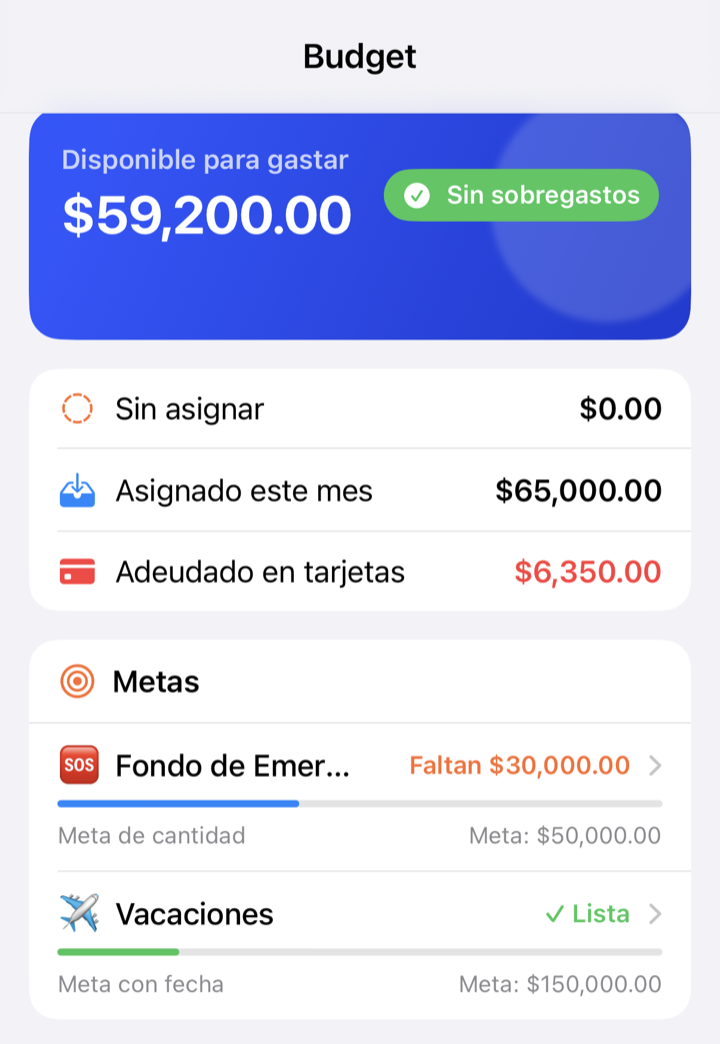
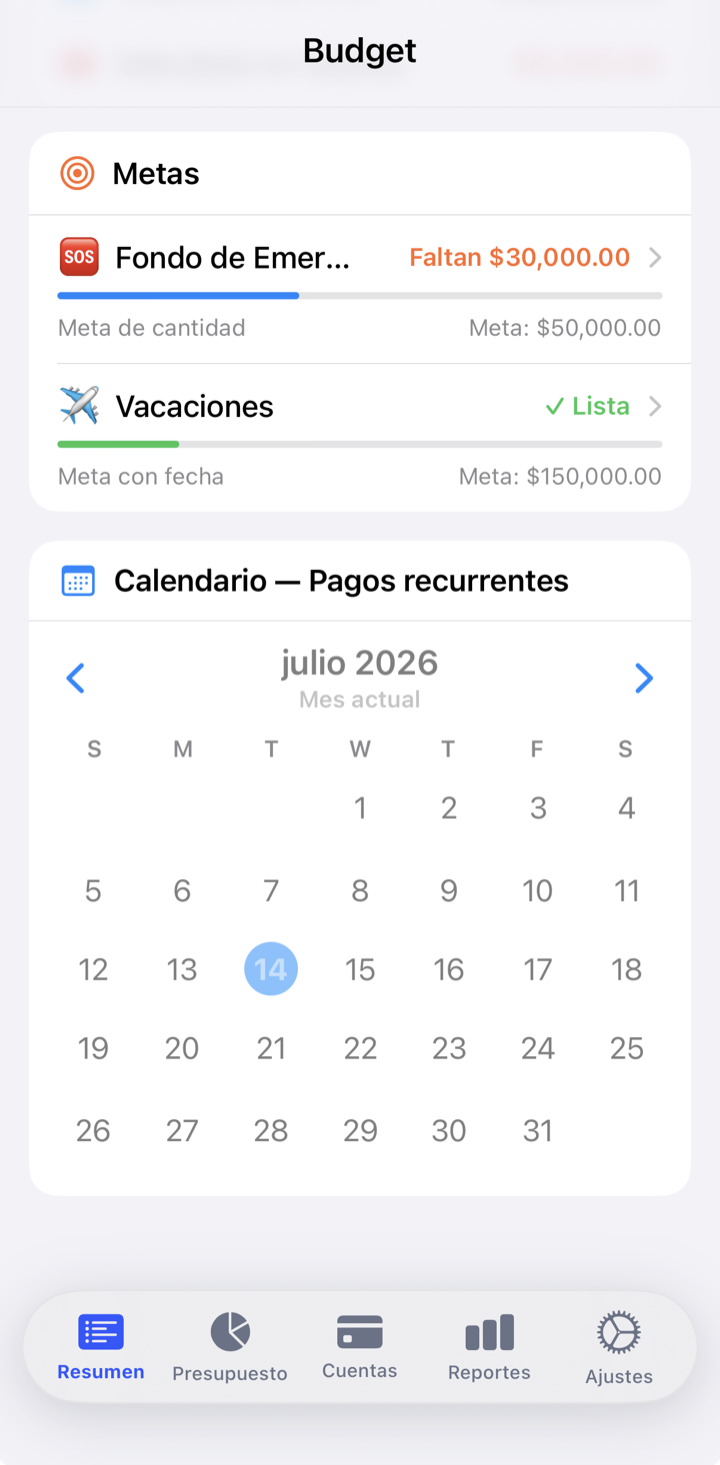
What you see here
- "Unassigned" — how much money you still have to split up. If it says $0, all your money already has a job.
- Total available — the sum of what's left in all your envelopes.
- Assigned this month — how much you've put into envelopes this month.
- Card debt — how much you owe in total on your credit cards.
- Goals — your savings goals and their progress. Tap one to open its detail screen with a progress ring and a projection.
- Scheduled payments calendar — days with a recurring payment are marked. Tap a day to process or skip it.
How to process a payment from the calendar
- Tap the marked day on the scheduled payments calendar.
- You'll see that day's payment(s). Choose "Process now" to create the transaction, or "Skip" to skip that cycle without recording it.
- When processing, you can adjust the amount of that charge if it came in different than usual.
All the details (creating them, frequencies, adjusting permanently or just once) are in Scheduled payments.
What happens to your money
A real transaction is created, just as if you had entered it by hand: if it's an expense, the matching envelope's available goes down; if it's income, it goes into "Unassigned"; if it's a transfer, it moves money between two accounts. Skip doesn't touch your money: it only skips that cycle.
Tips and common mistakes
Check Summary at the start of the month: if "Unassigned" is above $0, you still have money to split up.
A scheduled payment isn't recorded on its own: the app reminds you, but you're the one who confirms "Process now". That way a transaction is never created without your approval.
What if…?
What if «Unassigned» shows up in red (negative)?
It means you assigned more money than you have. Remove some of what you assigned to an envelope (in Budget) until it's back to $0 or positive.
What if I tap a goal?
Its detail screen opens: progress ring, suggested monthly contribution, current available, target date and a chart with your actual progress and a projection of when you'll reach it. See Goals.
What if a day has several payments?
When you tap the day you'll see all of them, and you can process or skip each one separately.