
📊 Budget tab
Budget is the heart of the app: your envelopes live here. It's where you give your money a job, assigning it to each category and moving it when needed.
On this page
What is this screen for?
This is where you decide what your money will be used for. Your categories are organized in groups (Fixed Expenses, Variable Expenses, Savings…). Each category is an envelope with its own available balance.
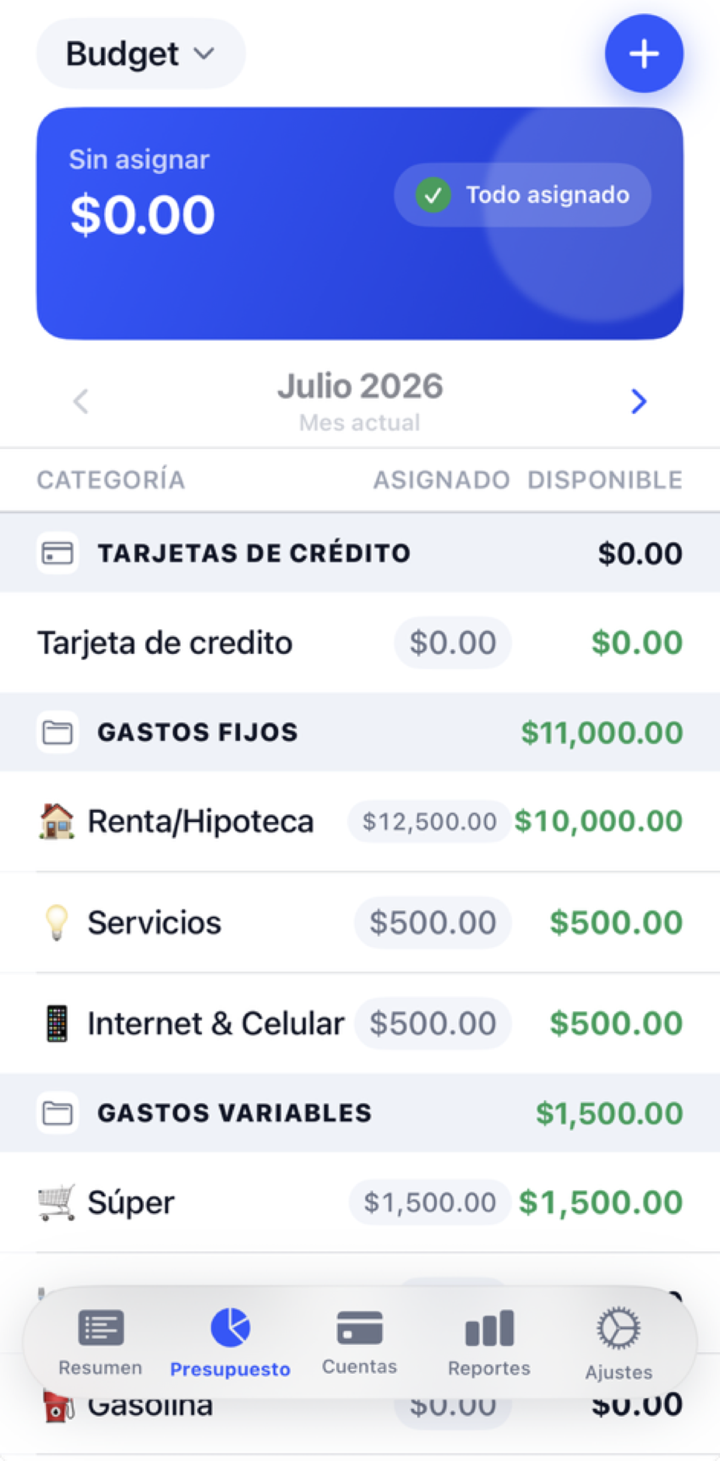
What you see here
- At the top, how much you have left "Unassigned" for this month.
- A month selector to move between months.
- Each category shows three things: "Assigned" (what you put in this month), "Activity" (what came in or went out) and "Available" (what's really left).
- The available amount shows in green if there's money and in red if the envelope went negative.
How to assign money to an envelope
- Find the category and tap the amount in the "Assigned" column.
- Type how much you want to put into that envelope this month.
- You can also use + or − to add to or subtract from what it already had (handy for topping it up without recalculating).
- Repeat until "Unassigned" reaches $0.
Everything you put into an envelope comes out of "Unassigned". If you assign $3,000 to Groceries, your "Unassigned" goes down by $3,000. That's why the $0 goal means "I've split it all up".
How to move money between envelopes
When an envelope comes up short, you don't need new income: you take from another one that has extra. That's moving money.
- Open the category you want to take money from or add money to.
- Choose Move money, then pick the source envelope, the destination envelope and the amount.
- Done: one envelope goes down and the other goes up by exactly the same amount.
Gas ended at −$120 and Groceries has $450 to spare. You move $120:
Your budget's total doesn't change; only the split did. Gas is back to $0 and no longer red.
What happens to your money
- Assigning: moves money from "Unassigned" → into the envelope. Its available goes up.
- Removing an assignment (or using −): returns money from the envelope → to "Unassigned".
- Moving money: goes from one envelope → to another, without touching "Unassigned".
- End of the month: whatever is left available in each envelope accumulates and starts the next month right there.
Not sure where the money goes from and to? Review it in How your money moves.
Tips and common mistakes
Assign to the essentials first (Rent, Utilities, Groceries) and leave savings and treats for last. If there's money left, you split it up; if you're short, you already know what to cut.
Don't confuse Assigned with Available. You can assign $0 this month and still have money available, because the envelope carried a balance over from last month.
What if…?
What if an envelope went red?
Move money from another envelope that has some, or assign more to it. While it's negative, that red reminds you that you spent money you hadn't backed yet.
What if I want a new category?
You can create categories inside your groups. Note: the automatic System and Credit Cards groups don't show up as options, because the app manages them on its own.
What if I over-assign and «Unassigned» goes negative?
It means you split up more than you have. Lower what you assigned to some envelope until "Unassigned" is back to $0 or positive.
What if I want to give an envelope a goal?
You can give it a savings goal (by amount, by date, etc.). See Savings goals.